| FOM 9.2 |
Fleet Operations Manual FOM Purchasing Module |
Doc No.: FOM 9.2
Revision: 01 Date: 15 Oct 2024 Issued by: DPA Approved by: MD |
1 Access
Purchasing module may be accessed as following in DSM:
Purchasing -> Requisition (RFQ)
Manuals for requisition module is available in DSM and may be referred to.

2 Requisition Categories in DSM
Following categories are present in DSM. Vessel may create requisition requests basis below.
- Store
- IMPA Items requisition, WSS Items, Marichem Catalogue Items, Non IMPA Store items may be created under this category.
- Spares
- Spare parts requisition may be created under this category.
- Repair/Service
- Shore assist Requests to be created under this category.
- Chemical
- Chemicals Requisition to be created under this category.
- Paint
- Paint Requisition to be created under this category.
- Lube oil
- Lube oil Requisition to be created under this category.
- Nautical Chart and Equipment
- Nautical Chart Requisition and other publications to be created under this category.
- For Nautical chart requisition, Chart is to be ordered through dedicated software and export of pdf of required chart to be uploaded as attachment.
- Welfare
- Welfare Items and winter clothes request to be created under this category.
- Bonded Store
- Bonded Store items requisition.
- Provision
- Provision Requisition to be created under this category.
- It can be accessed under Purchasing -> Provision Order.
3 Requisition Index
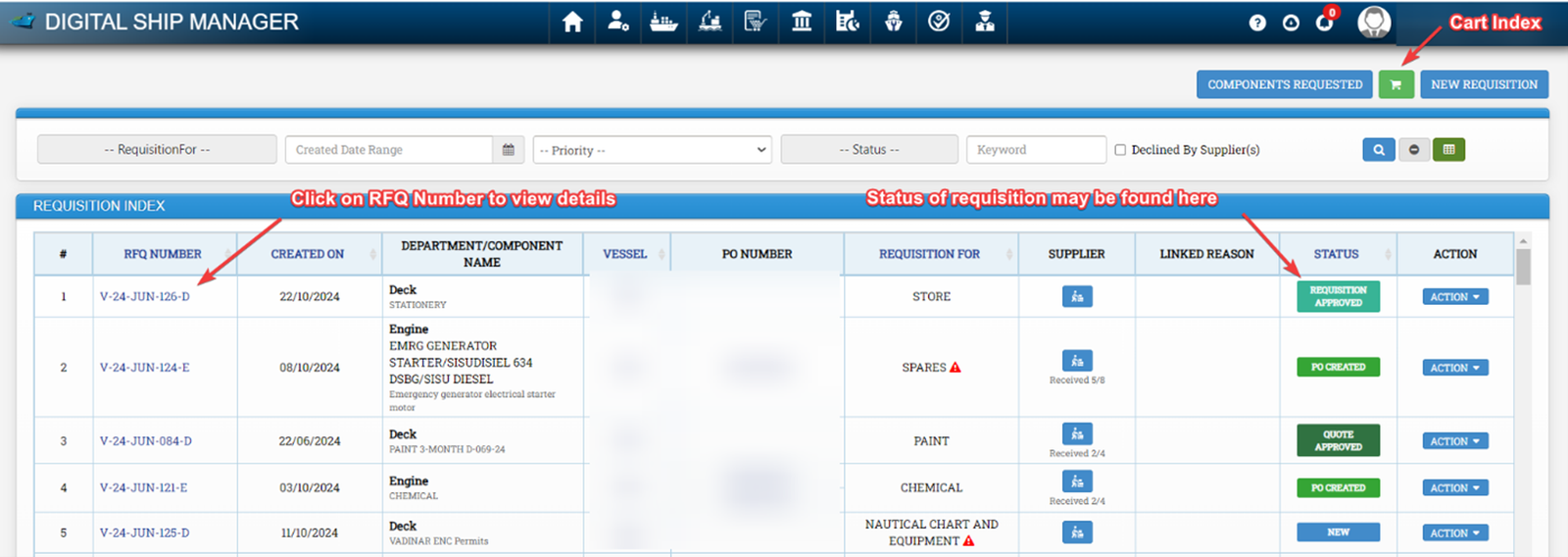
Detailed status of existing requisitions created by vessel may be found in Requisition Index.
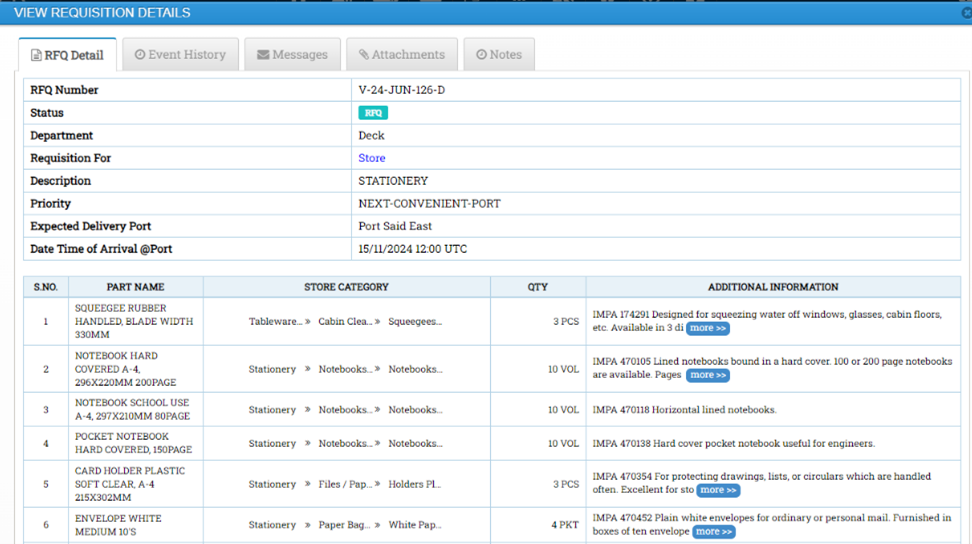
If we click on RFQ number corresponding to the required requisition, details regarding the particular requisition and its status may be found. To view/edit existing carts, click on cart index.
4 Creating Requisitions
The first step to create requisitions is same for below categories:
- Store
- Spares
- Repair/Service
- Chemical
- Paint
- Lube oil
- Nautical Chart and Equipment
- Welfare
- Bonded Store
Go to Purchasing Module -> Requisition (RFQ)

Click on New Requisition

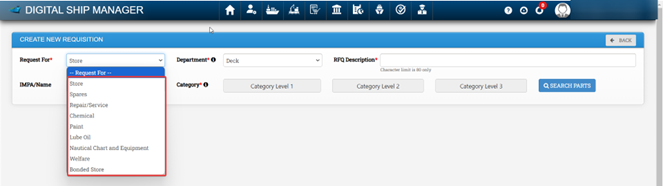
Select required requisition category under request for.
4.1 Creating Store Requisition
Go to Purchasing Module -> Requisition (RFQ) -> New Requisition -> Request for -> Select Store -> Select Required Dept -> Fill RFQ Description ->

To search IMPA Items, enter IMPA code/Name in field IMPA/Name without any spaces and click on search parts.
Alternatively select relevant categories under Category Level 1, Category Level 2 and Category Level 3 and click on search parts to show required items.

Enter required qty and click on add to cart
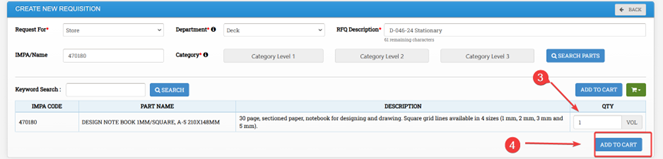
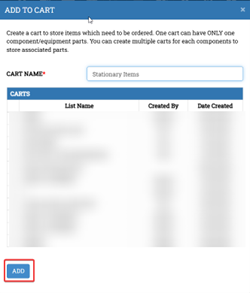
Enter a cart name and click on add to save the items in cart.
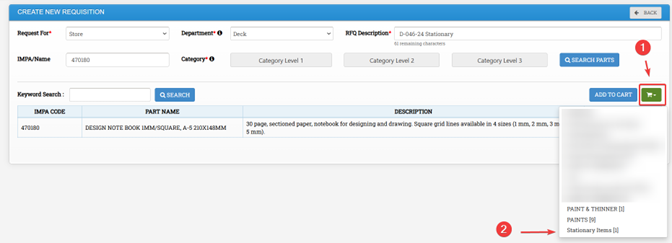
To go to the cart, click on cart index icon and select the required cart
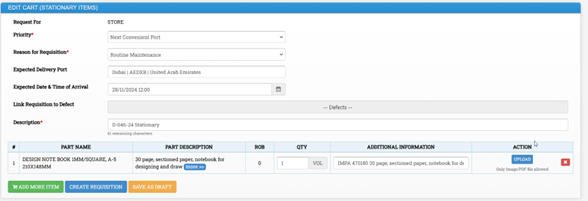
Fill the required details for creating the requisition and click on Create requisition. To add any attachment click on upload button to upload any images if required. To add more items, click on add more item.
4.1.1 WSS and Marichem Catalogue in DSM
WSS and Marichem Catalogues are present in DSM under Category Store.
To Search a particular item under stores category, We may prefix WSS followed by product code in case of WSS Catalogue and MC in Case of Marichem Catalogue.
Please note chemicals are available under the section chemicals in DSM platform and then we need to select Marichem/WSS. Other items are present under stores category. If any item which is to be ordered is not present in DSM, Please inform PMS Engineer who will add the item and revert.
For Example:
For WSS Product ID: 773156, We need to search WSS773156

For Marichem, Product ID: 731501, We need to search MC731501

To view all items under a particular catalogue, Under category Level 1, We may Search WSS or Marichem, Tick the required check box and click on search.
4.1.2 Procedure to Add Store Items Not in DSM
As per current procedure, for store items without IMPA Code / for IMPA items not present in DSM, vessel needs to sent list of items to be added to PMS engineer who will add the items in DSM and revert.
4.2 Creating Spare Requisition
Go to Purchasing Module -> Click on Requisition (RFQ) -> New Requisition -> Request for -> Select Spares -> Select Required Dept to view components / subcomponents under particular dept -> Fill RFQ Description -> Select Component / Subcomponent
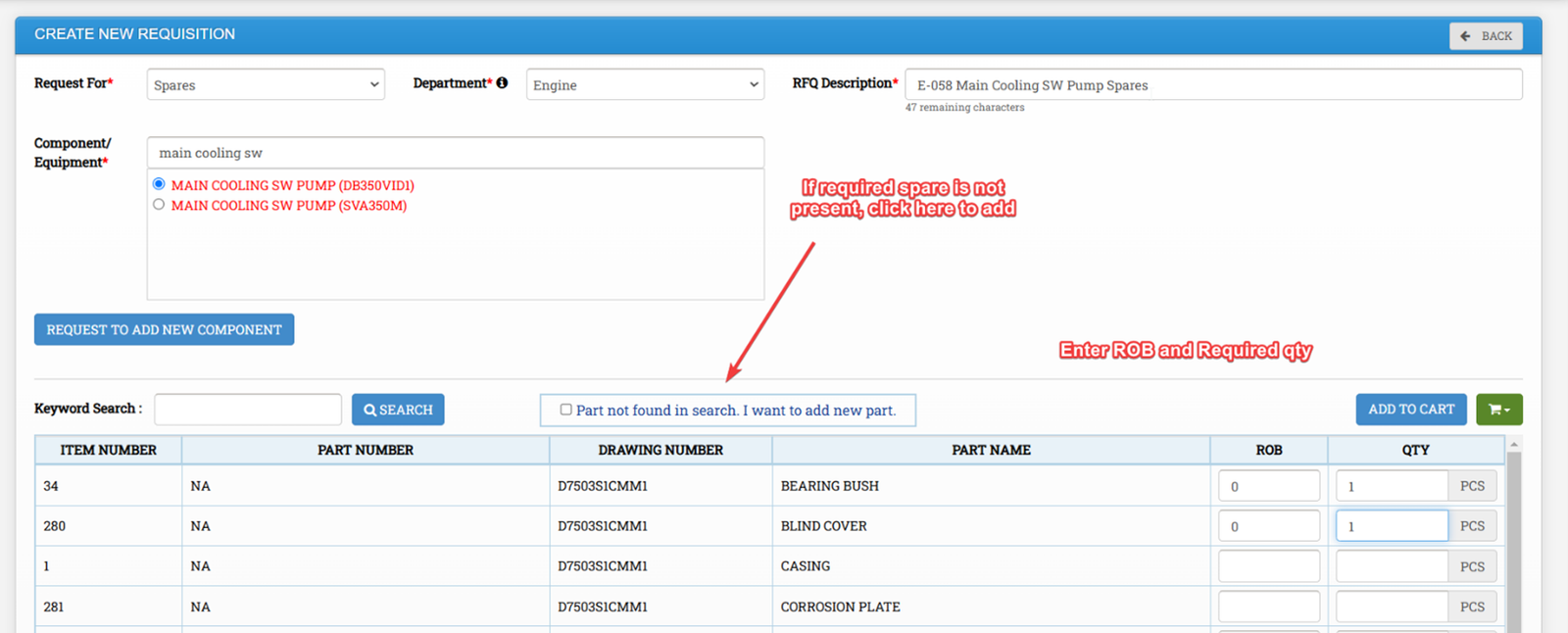
Find the required spares using keyword search in case required. Once spare is found or newly added, enter ROB and Required quantity and click on Add to cart. Enter the name of the cart and click on add.
Then click on cart index and select the required cart to view items / edit cart.
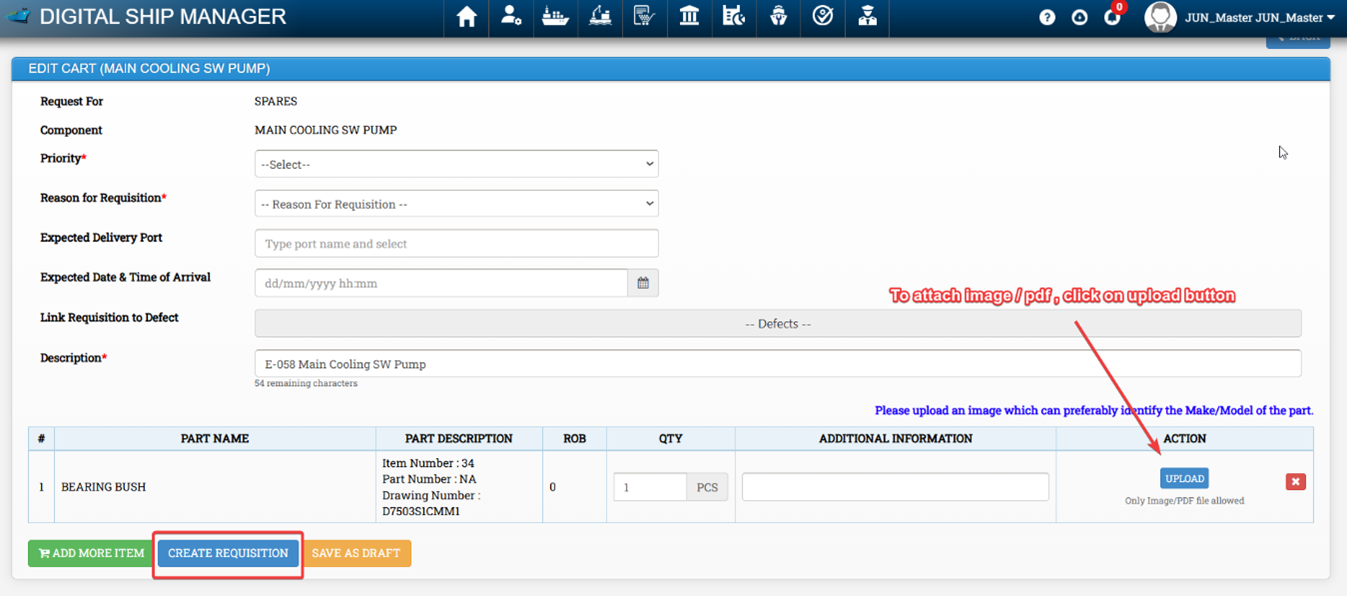
Fill all Required details and click on create requisition. Procedure to add equipment and spares is mentioned below.
4.2.1 Procedure to Request for Addition of Equipment
If required equipment is not available in DSM for creating requisition, Vessel may request to add the equipment through DSM and PMS team will approve the request.
Go to https://app-dsm.com/pms/request/add
Alternatively this can be done while raising requisitions, Go to Purchasing Module -> Requisition (RFQ) -> Click on New Requisition -> Select Option Request for spares in Create New Requisition Window -> Select Department -> Click on Request to add component
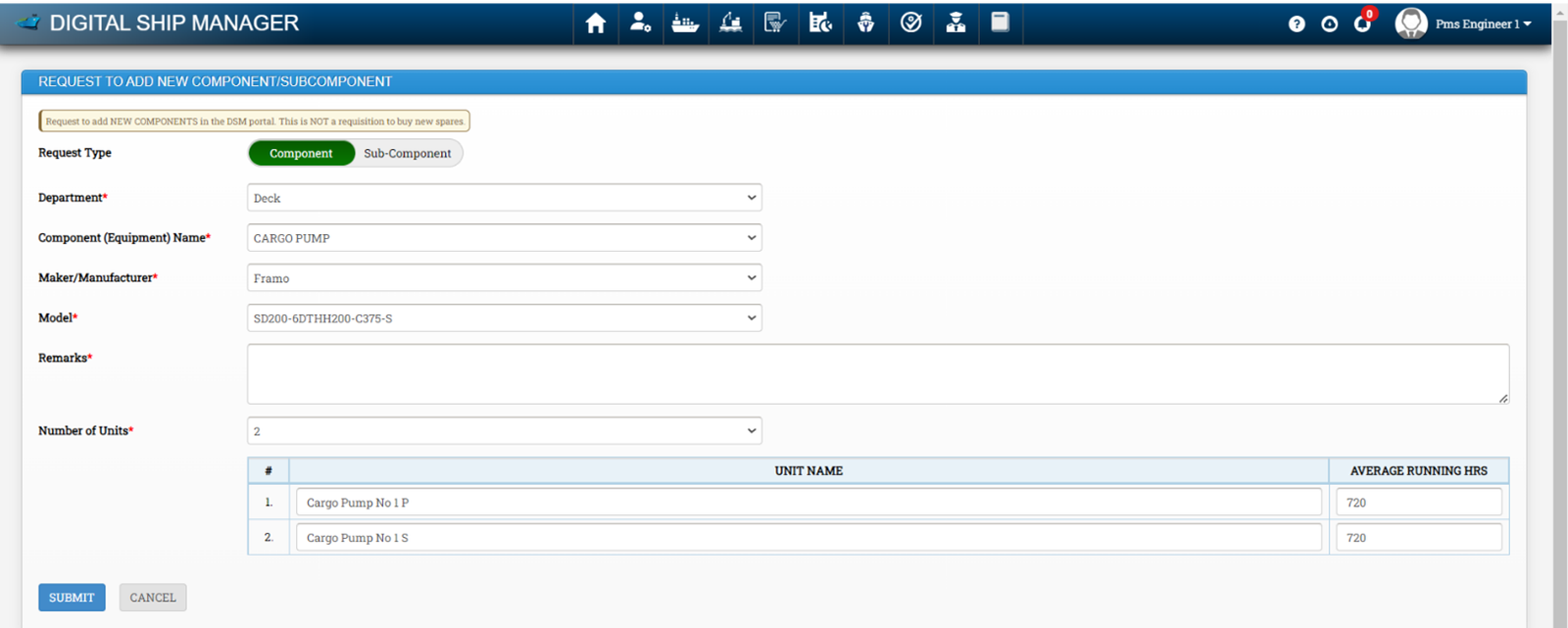
- Fill the following details
- Department: Enter Department, i.e., Engine / Deck Etc.
- Enter Equipment Name, Maker, Model, Remarks, Number of Units Etc.
- Click on submit
The request will be sent to office side for approval. Vessel will get notification once approved.
4.2.2 Procedure to Add Spares
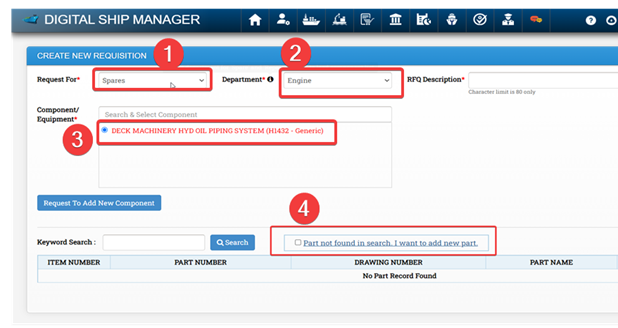
Once the component is selected, we may follow following steps.
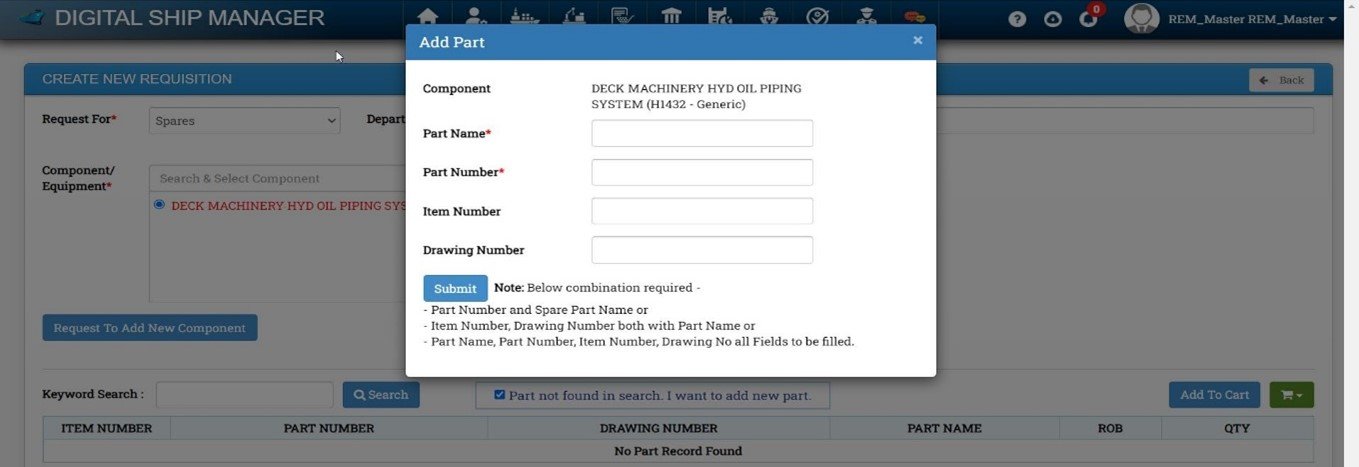
- Tick “Part not found in search. I want to add new part” and click on it
- Fill the below and click on submit. The spares will be added.

4.3 Creating Paint, Lube Oil, Nautical Chart Requisition
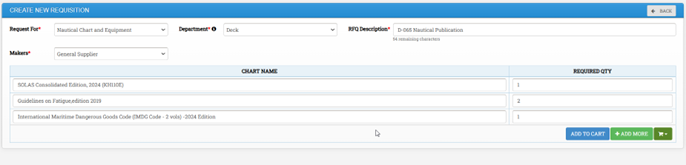
Go to Purchasing Module -> Click on Requisition (RFQ) -> New Requisition -> Request for -> Select Paint / Lube oil / Nautical Chart / Equipment -> Select Dept -> Fill all remaining Details and Click on Add to Cart. Once Added to cart, open the respective cart, fill the required details and click on create requisition.
Procedure is nearly same for below requisitions. Mentioned Below Sample.
Paint Requisition

Lube Oil Requisition

Nautical Chart and Equipment Requisition
Vessel is to use default software /service by chart provider for ordering of ENCs. Request is also to be created in DSM for record purposes. Vessel may attach pdf of required charts as attachment pdf to save time. Vessel may order nautical publications also under this option.
4.4 Creating Shore Assist Requests
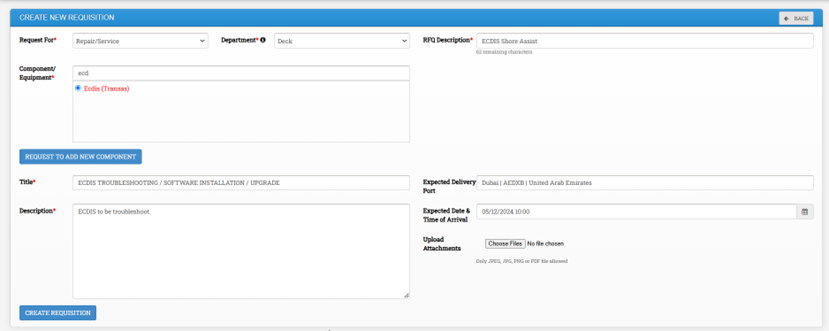
Go to Purchasing Module -> Click on Requisition (RFQ) -> New Requisition -> Request for -> Repair / Service -> Select Dept -> Based on Dept Components will be shown below -> Enter all details and click on create Requisition
4.5 Creating Chemical Requisitions
Go to Purchasing Module -> Click on Requisition (RFQ) -> New Requisition -> Request for -> Chemical -> Select Dept -> Select required maker -> Enter all details and click on create Requisition

To add more items, click on add more. Click on add to cart to save it to a cart.
4.6 Creating Welfare and Bonded Store Requisitions
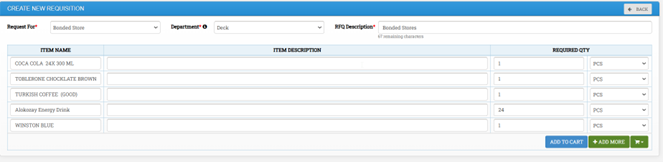
Go to Purchasing Module -> Click on Requisition (RFQ) -> New Requisition -> Request for -> Welfare / Bonded Store -> Select Dept -> Select required maker -> Enter required details, Unit and click on Add to Cart
4.7 Creating Provision Requisition
From User (Vessel Master’s) Dashboard – Navigate to Purchasing -> Provision Order
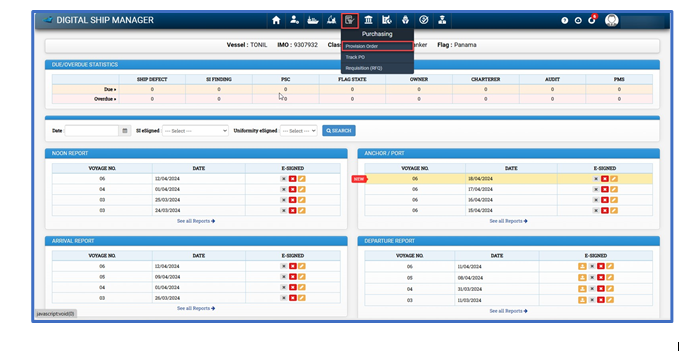
This will open the Provision Requisition Index screen.
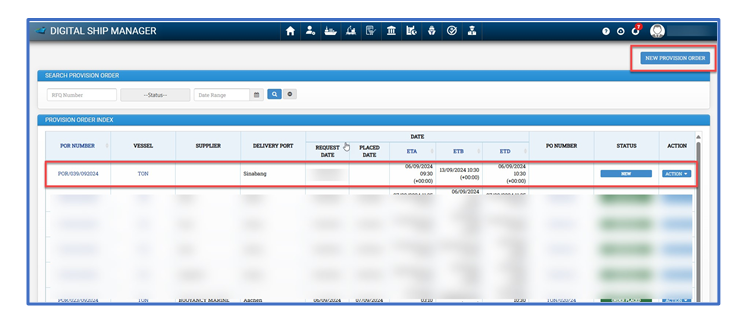
On the Provision Requisition Index, Click on New Provision Order.
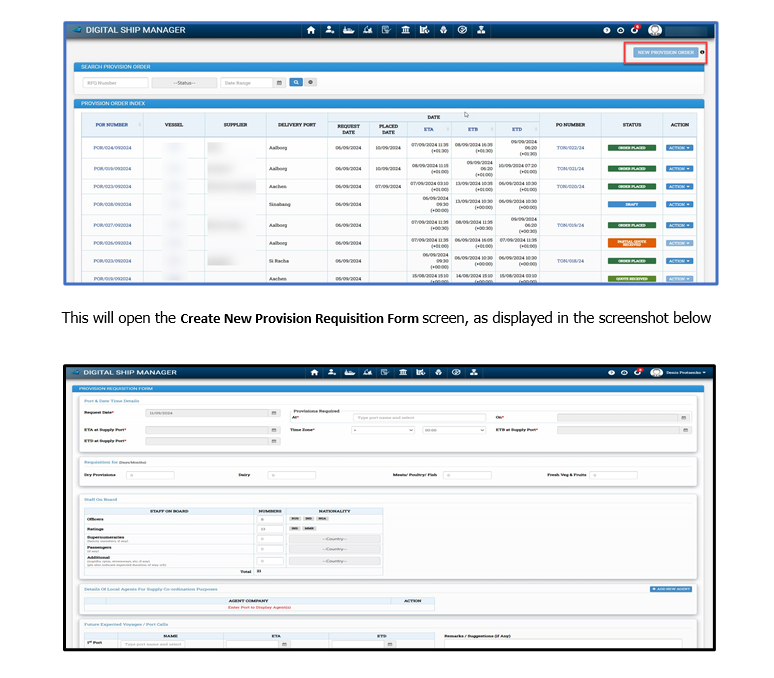
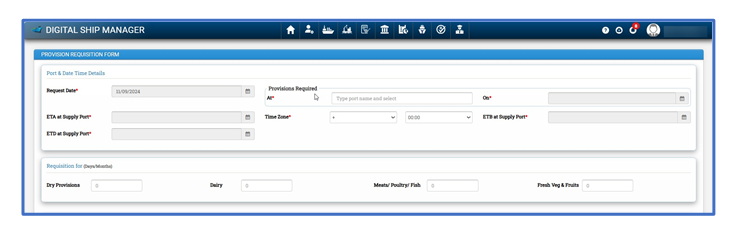
On the Create New Provision Requisition screen – Fill the Port Date Time Details followed by Requisition For (Days/Month)
Once the above details are completed, provide the information for Local Agents responsible for supply coordination. The agent’s details will be based on the selected delivery port. If the user wishes to add a new agent, they can do so by clicking 'Add New Agent'. Staff onboard details will be Pre-populated by Crew Details. If vessel Master knows his Future Expected Voyages / Port Calls that can be also mentioned here.
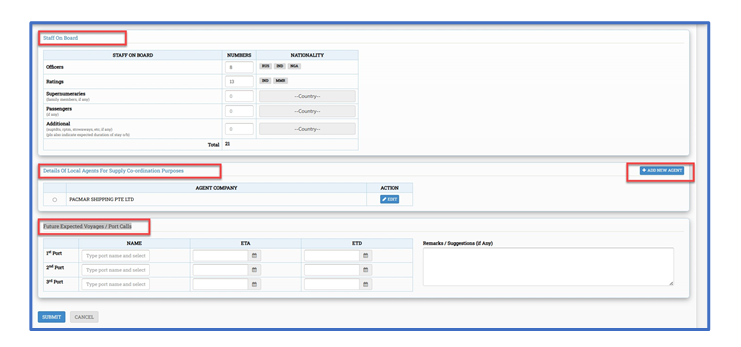
Once all Mandatory details are mentioned in the above form and submitted by the Vessel Master, it will Navigate to second page of Provision Requisition Form.
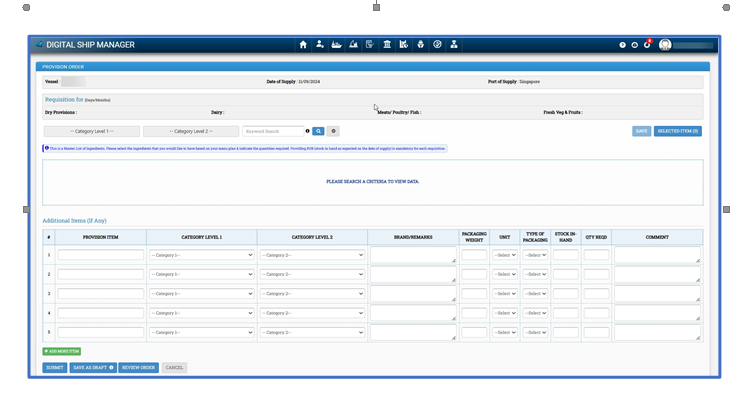
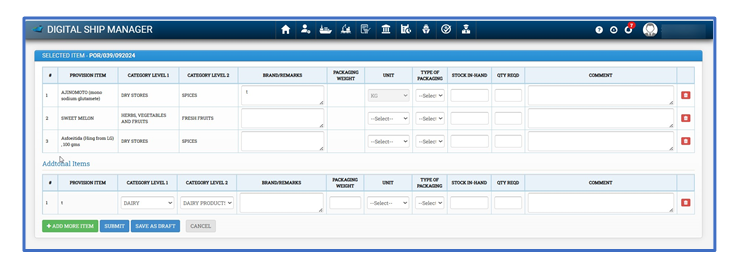
On the form above, the Vessel Master will select provision items by choosing the appropriate category and subcategory. All subcategories are dependent on their respective categories. Therefore, the user must first select a category, followed by its corresponding subcategory. The user can click the "Selected Items" button at any time to review a consolidated list of all items added to the requisition
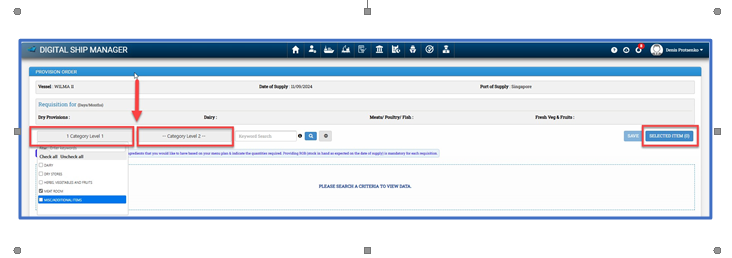
Once the user selects items from the categories listed above, and if they don't find an item in the Master List, they can add those items under "ADDITIONAL ITEM." The user can also assign the new items to the appropriate category and subcategory.
Once the user has added all the required items to the list, they have the option to save the provision order requisition as a draft, allowing them to add more items later.
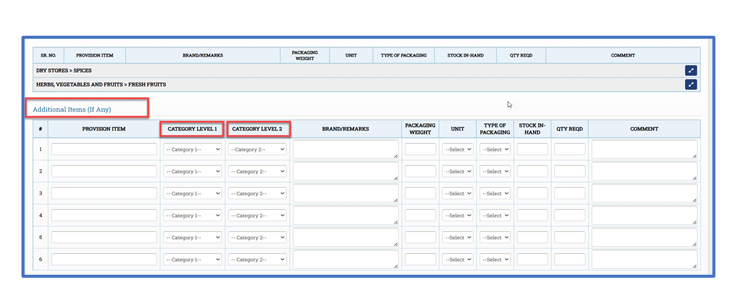
Alternatively, the user can choose the REVIEW ORDER option, where the complete consolidated list of selected items will be displayed. In this view, the list is editable, and the user can modify item details if necessary.
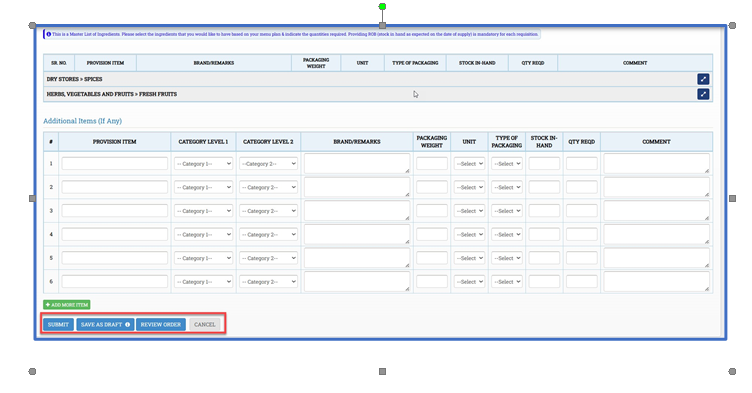
Once the user has completed the provision order requisition list and filled in the mandatory details, they can click the Submit button. This action will create the provision order requisition, and its status will change to NEW.
Once the provision order requisition is created and the status changes to NEW, the New Provision Order button becomes enabled, allowing the user to select it and create a new provision order request.
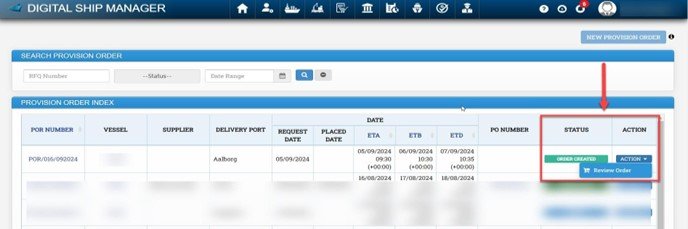
Once Provision Order is created by the office, it is sent back to Vessel master for review. Status of Provision Request will be Order Created & Option in action menu will be Review Order.
On the Review Order screen, the Vessel Master has access to edit the quantity of items or delete specific items to adjust the total amount of the provision order within the budget. Once the Vessel Master submits the requisition, Status changes to REVIEWED BY MASTER, then it is ready for Purchase Order creation by the office.
5 How to Mark Items Delivered and Upload Delivery Note
Go to purchasing module -> Click on Track PO

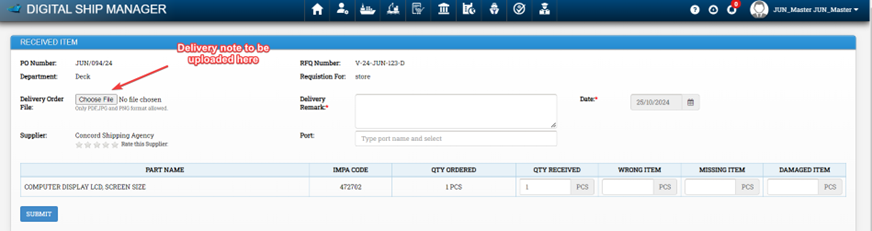
Once status of the required requisition is "AL sent to vessel" (Purchasing officer needs to first update PO to this status for vessel to be able to upload DN), In case the required requisition is not available in Track PO Screen, please ask Purchasing officer to update in DSM.

We need to click on receive order
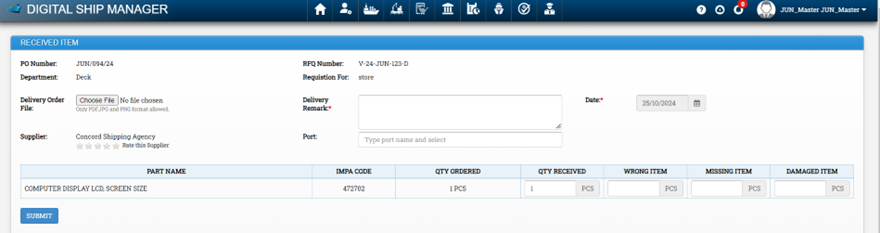
Fill all details and click on submit