| FOM 9.3 |
Fleet Operations Manual FOM Planned Maintenance System Module |
Doc No.: FOM 9.3
Revision: 01 Date: 15 Oct 2024 Issued by: DPA Approved by: MD |
1 How to View Jobs in PMS
Procedure for viewing jobs in PMS is as per below
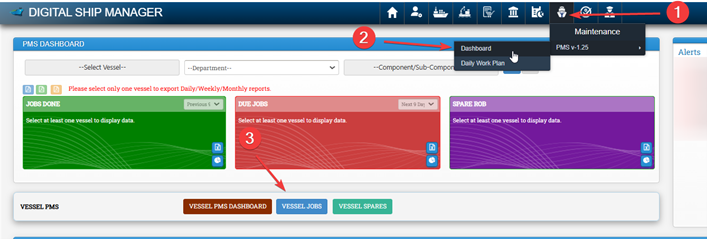
Click on PMS Module -> Select Dashboard -> Click on Vessel Jobs
Select the vessel and click on search icon to show all jobs
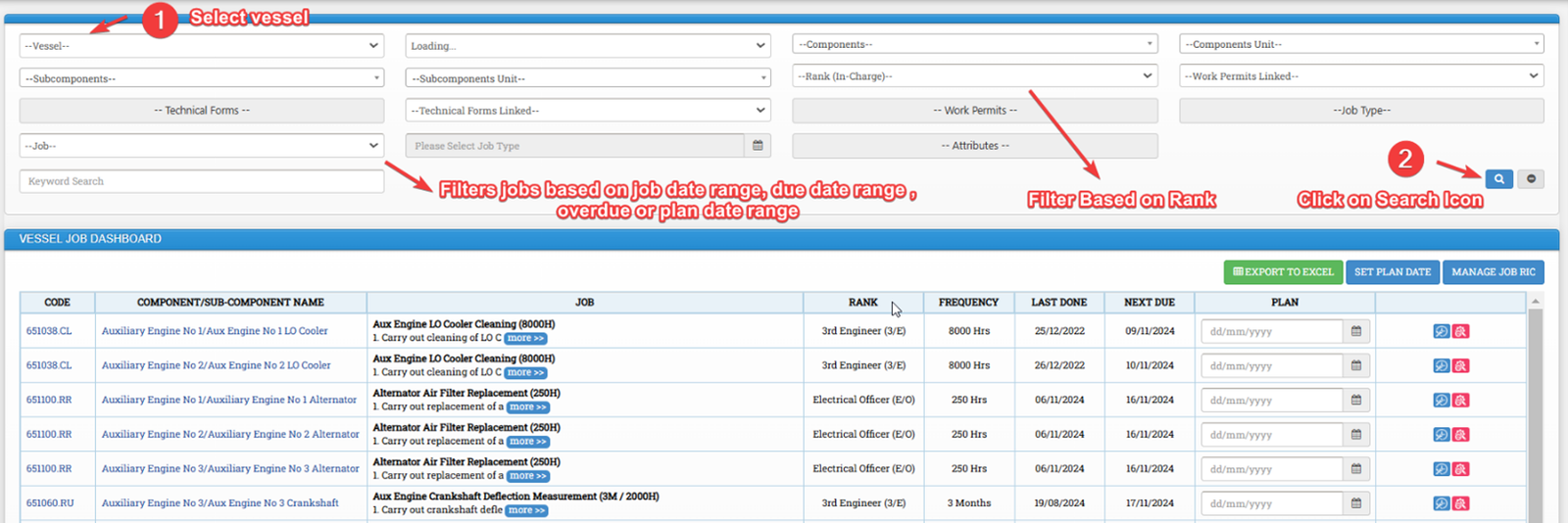
Users may filter jobs based on following categories as well.
- Component, For Example: Main Engine
- Subcomponent, For Example: Piston for Main Engine
- Component Unit Name: For Example: ME Jacket Cooling FW Pump No 1
- Subcomponent Unit Name: For Example: Aux Engine No 1 Cylinder Head No 1
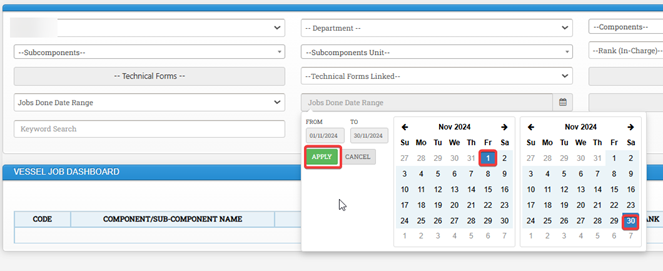
- Job Done Date Range: Filters jobs based on job closed Date Range, For Example: Jobs closed within past 1 month
- Job Due Date Range: Filters jobs based on Due Date. It shows jobs which are due within the selected date range. Selection is similar to as mentioned in above image.
- Jobs Over due: Filters jobs which are overdue.
- Plan Date Range: Vessel may set a planned date to complete a job. Filters jobs based on the selected plan date range. Selection is similar to as mentioned in above image.
2 How to Update Planned Date for Jobs
Procedure to update the planned date for jobs is as per below.
- Go to PMS -> PMS Dashboard -> Vessel Jobs
- Apply required Filters based on required equipment -> Click on Search icon
- Select the date under plan -> Click on Set Plan Date

3 How to Update Rank in Charge for Jobs by Vessel
Vessel may follow below procedure to update Rank in charge for particular jobs or may request PMS Team to update the required ranks.
Go to PMS -> PMS Dashboard -> Vessel Jobs -> Click on Manage Job RIC
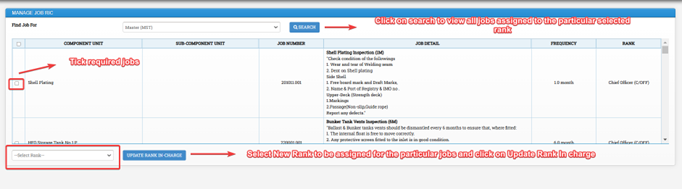
- To view the jobs present under a particular rank, select the rank and click on search button
- Select the required job
- Select the new rank which is to be updated and click on Update Rank in charge.
4 How to Postpone Jobs
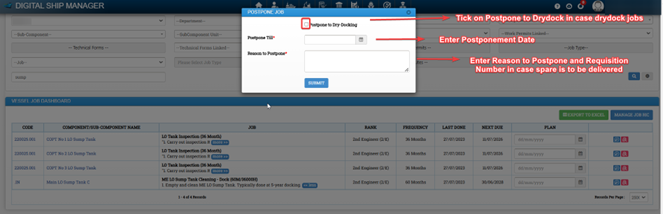
Vessel may postpone jobs in PMS in case of unavailability of spares, in case the Job is to be done in drydock or in case of any justifiable reasons. The Request to postpone job will be approved by TSI.
- Go to PMS -> PMS Dashboard -> Vessel Jobs -> Put required filters as necessary and click on Search
- Click on postpone jobs
- Enter Postponement date, Reason and click on submit button.

5 How to Download Jobs Export
Inside Vessel Jobs, click on Export to Excel button to Download Jobs export
Go to PMS -> PMS Dashboard -> Vessel Jobs
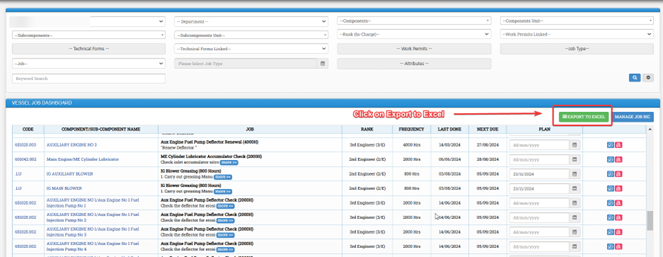
Click on Export to excel button to download the export.
6 How to Add Jobs in Workplan
Jobs should first be added to workplan for closing the jobs in PMS. This is available from Master, Chief Officer, Chief Engineer and Second Engineer accounts.
Vessels are to create new workplan, add jobs to workplan daily and complete it as per correct PMS Schedule.
Procedure for adding job to workplan is as follows
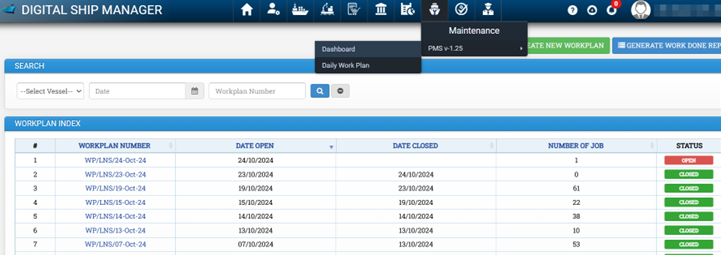
- Go to PMS -> Click on Daily Work Plan
- Click on create a new Workplan or open an existing workplan
- Click on Add more Job
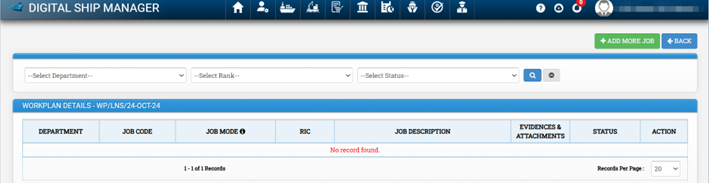
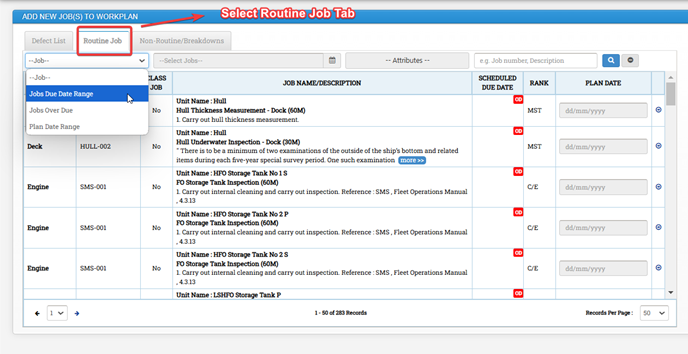
To add jobs from PMS, Click on Routine Job Tab
Under Job Dropdown select any of the following fill the required details and click on search icon
- Job Due Date Range: Filters jobs based on Due Date. It shows jobs which are due within the selected date range. This option may be used to filter jobs and add jobs to work plan which are due based on the selected date range.
- Jobs Over due: Filters jobs which are overdue.
- Plan Date Range: Filters jobs based on Plan date range selected earlier. Refer Section 2, How to update plan date range for jobs.
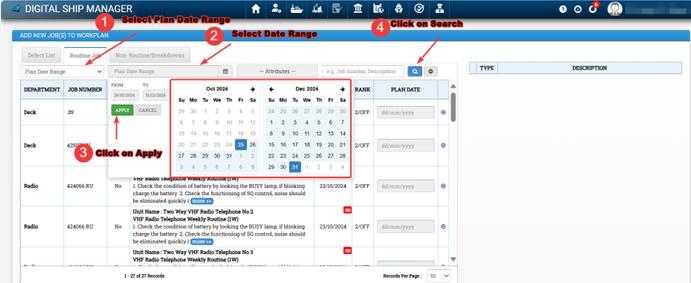
Fill Required Details, then click on Search
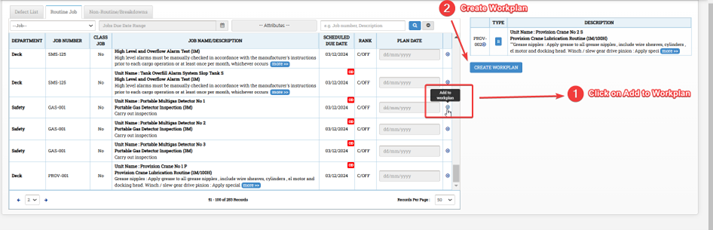
To add the required jobs to workplan, Click on Add to Workplan
To view all the jobs in above window, click on jobs due date range and click on search. To filter a particular job, we may search with either job code or job title.
Click on Create Workplan.
7 How to Close Jobs in Workplan
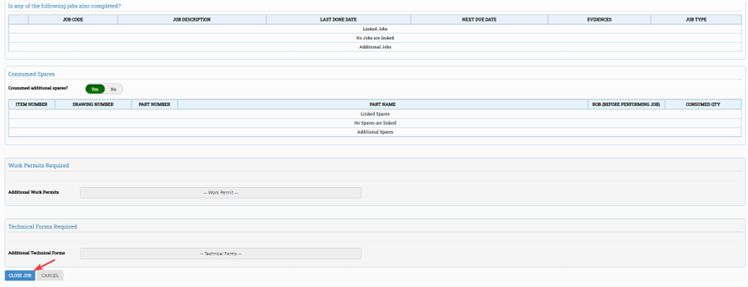
While closing the job in PMS, vessels are advised to add appropriate job closing remarks which contain following. It is advised to not just copy paste same job description.
- What job / inspection was done
- Present condition of equipment or parts
- Spare parts if any were replaced
- Any information which may assist future crew in troubleshooting any issues
Procedure for closing jobs in workplan is as follows
- Go to Workplan.
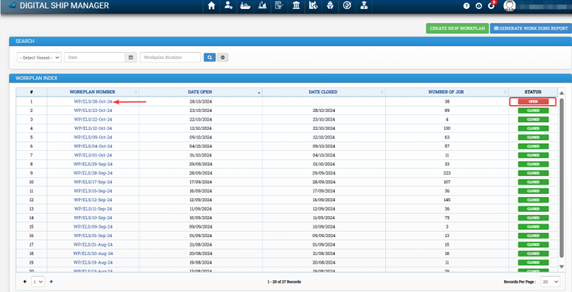
- Click on workplan which is in open status. In case it is required to Create a new workplan, create a new workplan or open an existing workplan.
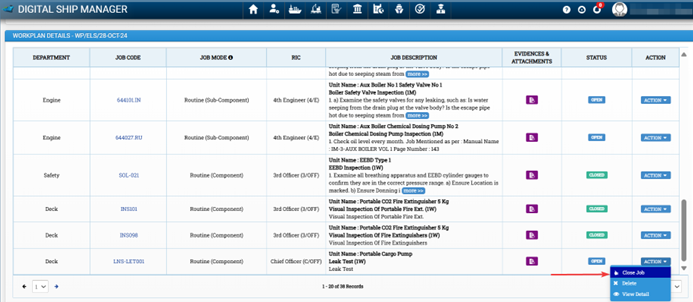
- On right side of the required job to closed, Click on Actions Button and Then click on Close Job
- Fill Required details and click on close job to close the job.

8 Creating Unplanned Job in PMS
To create proper maintenance record / maintenance history for equipment, Vessels are advised to update Unplanned jobs in PMS. All Below Records are to be updated in PMS under corresponding equipment.
- Service or calibration records by shore team
- Breakdown / Rectification Jobs
- Drydock Jobs
Procedure for adding non-routine job is as per below.
- Go to PMS -> Daily Work Plan
- Click on Add more Jobs
- Click on Non Routine / Breakdowns Tab
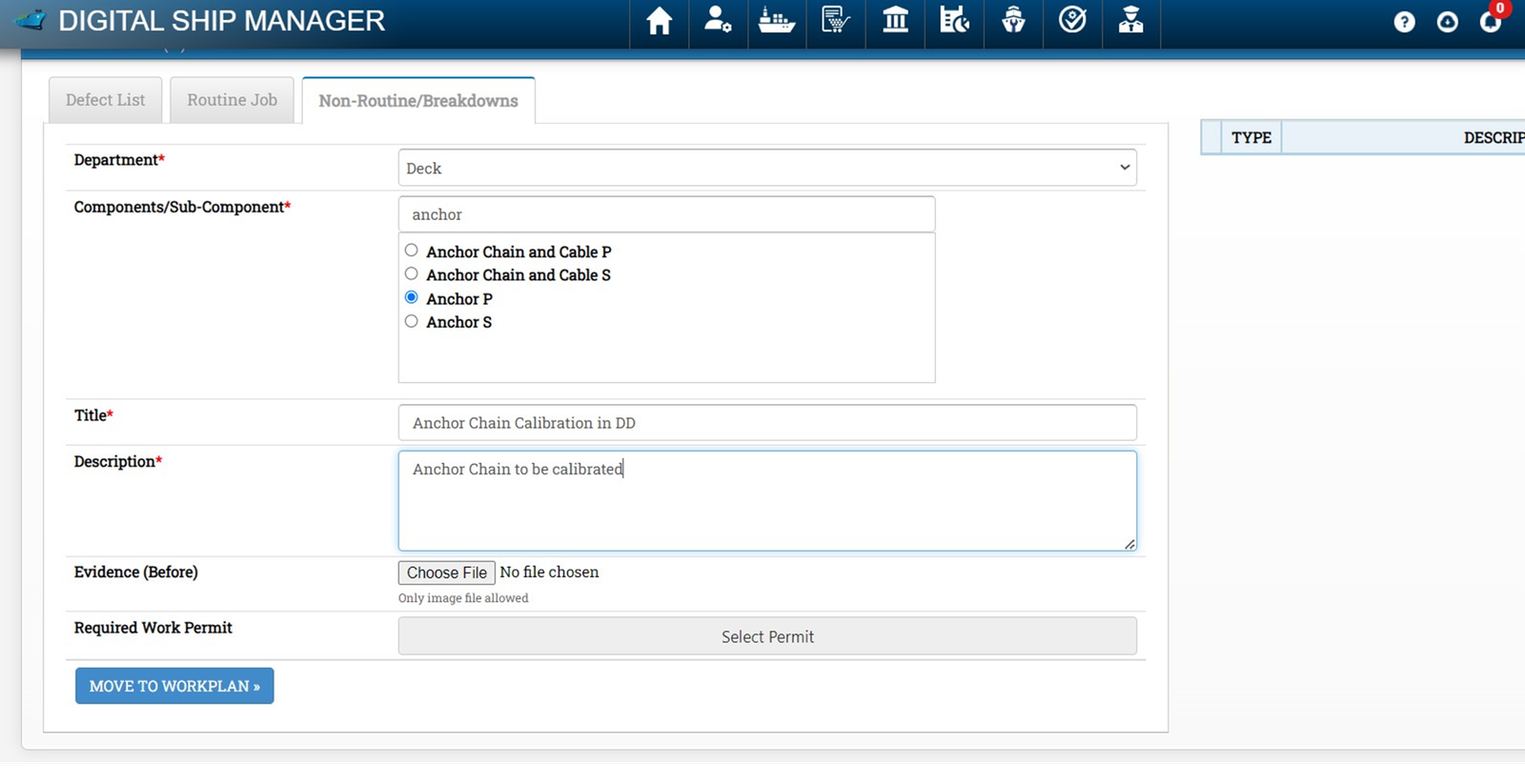
- Click on Non Routine / Breakdowns -> Select Dept -> For example Deck -> Select Component/Subcomponent -> Add Job Title and Description, For example Drydock Anchor Chain Calibration
- Fill Required Details, then click on move to workplan.
- Click on move to workplan -> Create Workplan.
- Close Job

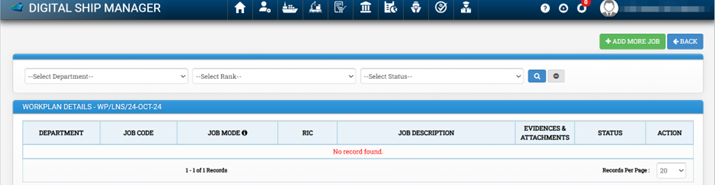
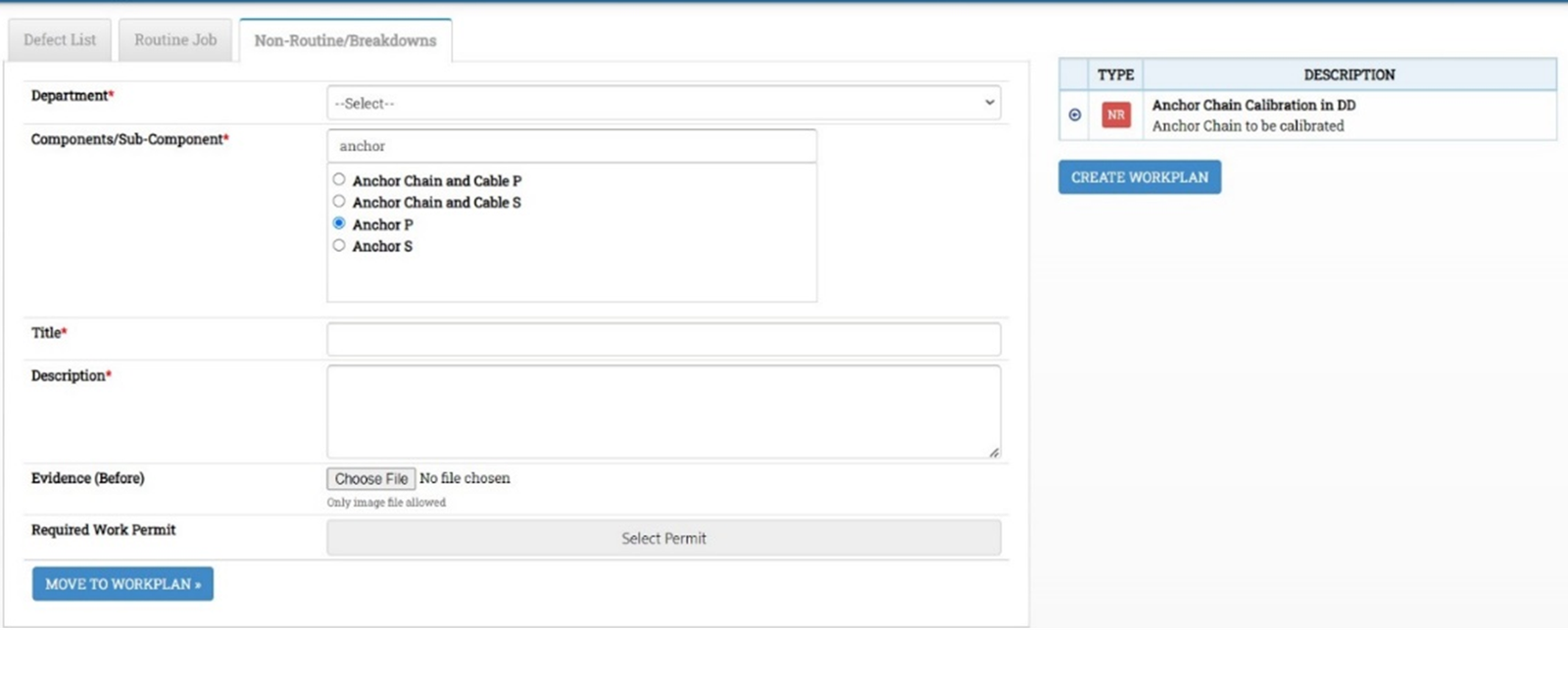
After moving to workplan, click on create workplan it will show inside the workplan. In the actions section, Click on Close Job. Refer Section 4 for How to Close Jobs in Workplan
9 How to Update Running Hours in DSM
Procedure for updating Running Hours for equipment is as per below.
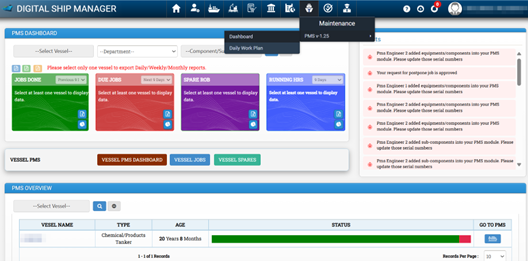
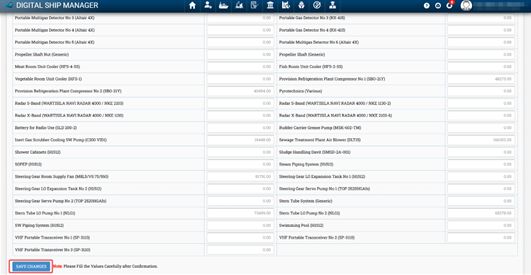
- Go to PMS -> PMS Dashboard -> Vessel PMS Dashboard
- Click on View Running Hours Report
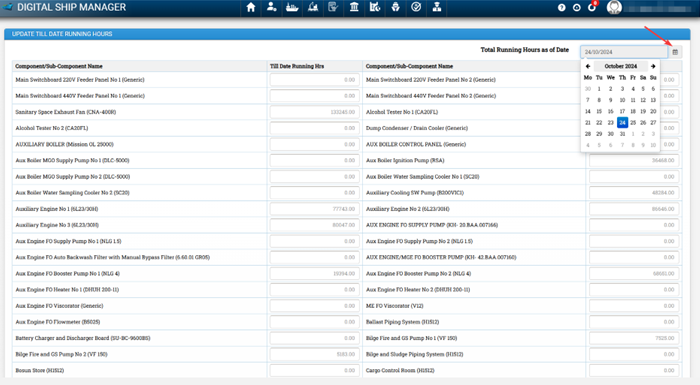
- Select Date
- Select as of date in which the running hour reading taken.
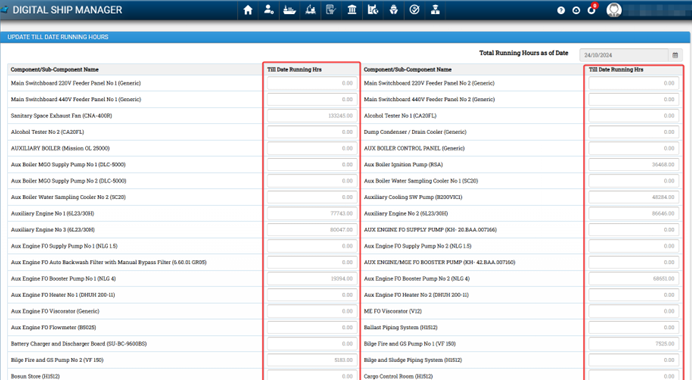
- Update till Date Running Hours of the equipment
- Enter the running hours of the equipment in the corresponding text boxes.
- Click on Save Changes

10 How to Review and Close Overdue Jobs in PMS
To download export of overdue jobs, following procedure may be followed.
Go to PMS -> PMS Dashboard
11 Continuous Improvement of PMS
Vessels are advised to review onboard PMS periodically and suggest improvements. If any jobs are not applicable to the vessel or not vessel specific, vessels are to inform the PMS department regarding the same. If any important jobs are missing with respect to PMS, vessels may inform PMS department.