| FOM 9.4 |
Fleet Operations Manual FOM Work Rest Hour Record in DSM |
Doc No.: FOM 9.4
Revision: 01 Date: 15 Oct 2024 Issued by: DPA Approved by: MD |
1 Creating Work Hour Record in DSM
From User (Vessel Master’s) Dashboard - Navigate to Crew >> Enter Working hours
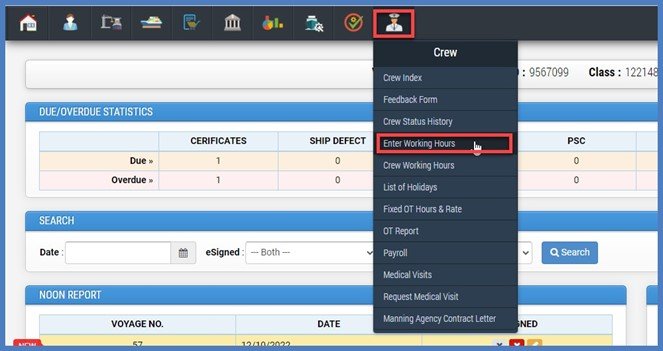
On selection of working hours screen, system will ask to select Applicant Name.
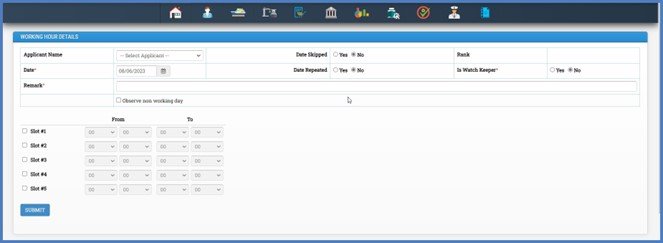
Updating Record
Select Applicant Name,
Select Date,
Enter Remarks,
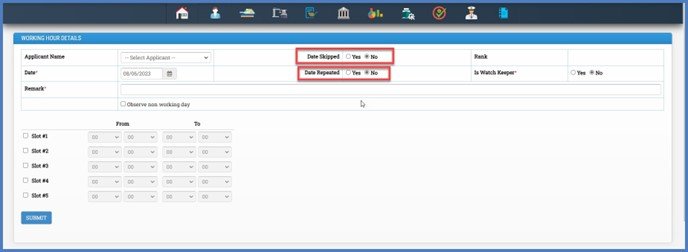
On Above screen, you have option to select Date Skipped if applicable, due to passing international time zone. Upon selection of this option, system will not ask to enter working hours details in time slots User can just create a record for selected date with auto remarks.
On Above screen, one more option is available for Date Repeated, If date is being repeated due to crossing international time zone you can select this option and remarks will be auto filled.
Completion of Report
After completing all details click on submit button and the system will navigate you to view working hours record index to view working hours for all crew (for current month).
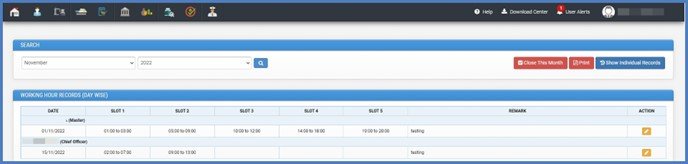
If you want to see individual records for one particular crew click on “Show Individual Record” button on top right corner.
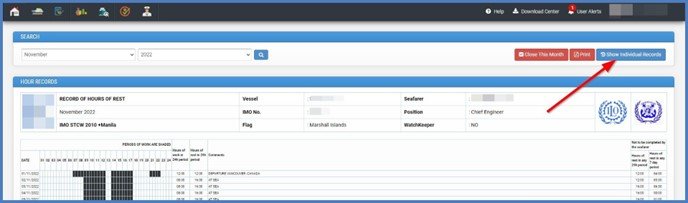
On the below screen select rank and crew to see monthly day-wise working hour record.

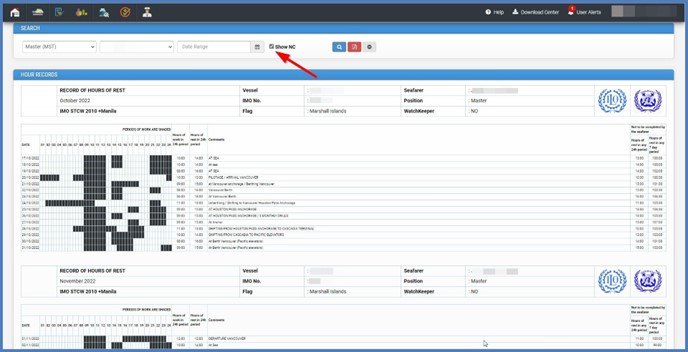
For rest hour NCs you can check above check-box while searching and the system will display NC records with RED markings to highlight NCs.
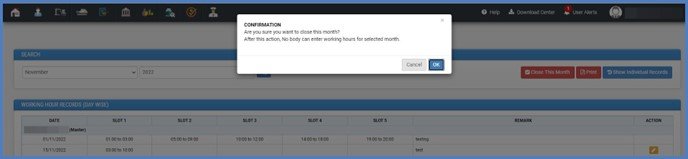
When working hour records for all crew members are updated in the system then master can close that month by clicking on Close This Month button-